Text Recognition (OCR)
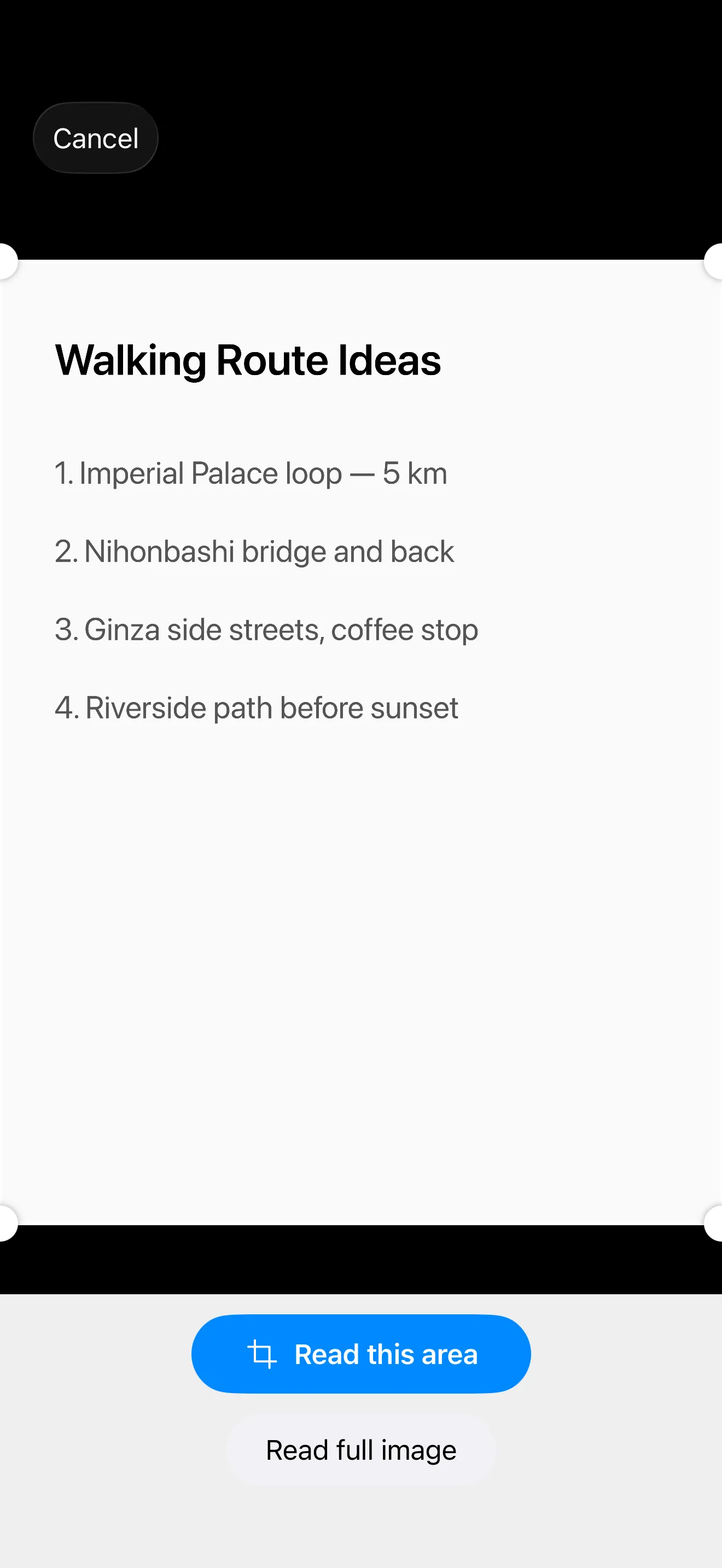
Sometimes the fastest way to capture text is to photograph it — a menu, a poster, a page from a book you don’t want to retype.
Open any photo attached to a memo (freshly captured or picked from your library), and tap Read text. Recognition runs entirely on your device, and the result appears as editable text you can fix up before inserting. If your cursor is in the memo, the text lands right there; otherwise it’s appended at the end.
Reading Only the Part That Matters
A photo usually contains more text than you want — a whole menu when you only care about one dish. Before recognition starts, you can drag a selection box over just that part: pull the corner handles to resize, drag inside the box to move it. Tap Read this area to recognize only that region, or Read full image to skip cropping and read everything as before.
When you confirm a selection, Sanpou asks which image to keep: only the cropped part, or the original photo. Keeping only the crop replaces the attachment — for already-saved memos, the stored file itself — so pick the original if you’ll want the full picture later.
Languages & Vertical Text
Recognition follows your app language, with your secondary language one tap away. Japanese, English, and Dutch are supported. For Japanese, a toggle switches between horizontal and vertical (tategaki) text — handy for book spines and traditional print.
Nothing recognized, or the wrong bits? Tap Retry to run it again with a different language, direction, or crop.
Photos come from the same flow described in Photo & Video Capture.
← All features