Text from Photos
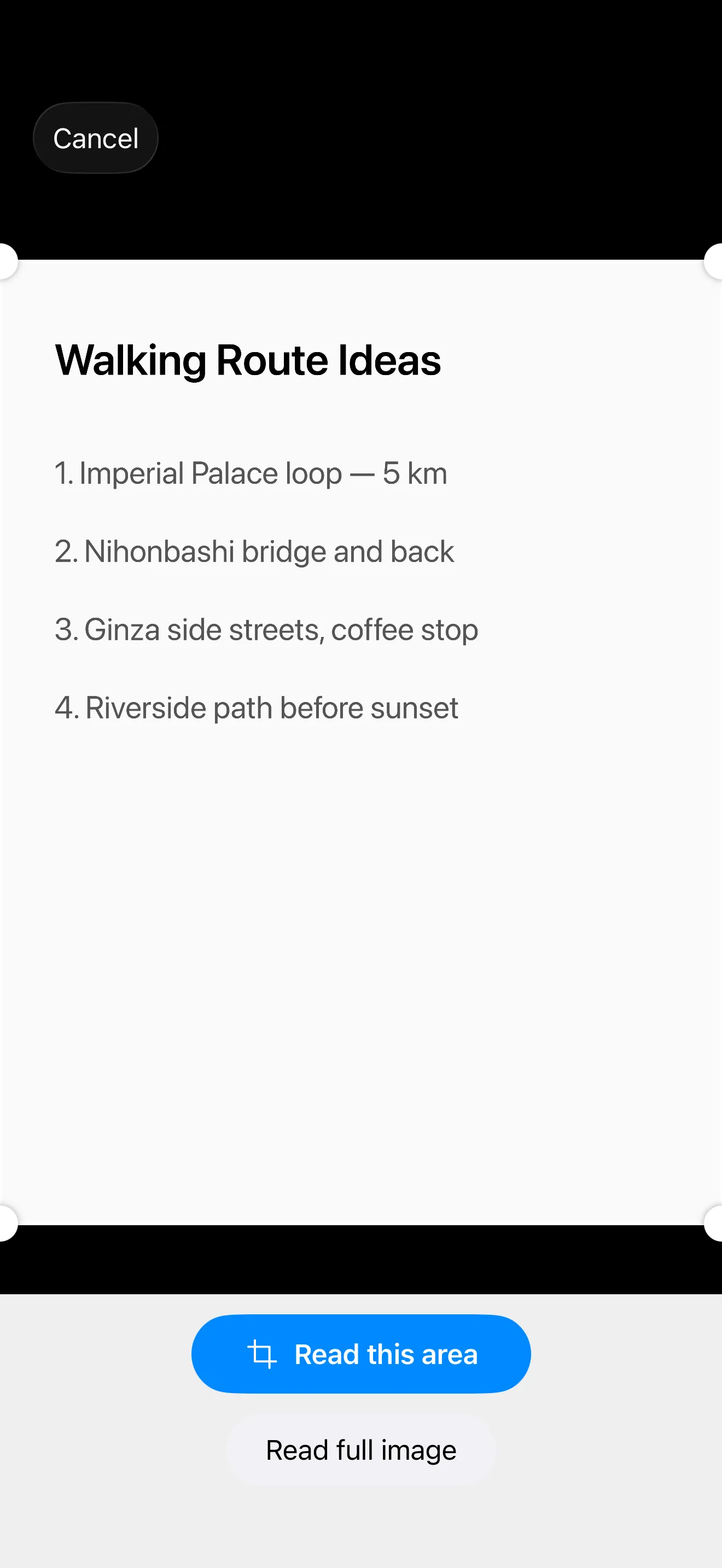
Not every walk thought arrives as a sentence. Sometimes it’s a sign you photographed, a handwritten menu board, or a passage from the book you’re reading. Text from Photos (technically, OCR) turns the text in those photos into something you can edit, search, and export with the rest of your memo.
How to Start
Recognition runs on photos that are already attached to a memo — it doesn’t launch the camera on its own.
- While composing a memo: tap a photo thumbnail to open it full-screen, then tap the “Read text” button overlaid on the preview.
- From a saved memo: open the memo detail view, find the photo in the carousel, and tap the “Read text” button.
Both paths open the same confirmation sheet. Pick language and orientation if needed, tap “Recognize,” then edit the result before inserting.
Languages
Text from Photos follows your app language settings. The language picker only shows the languages you’ve actually enabled — your primary plus the optional secondary — so if you only use Japanese, you won’t see an English toggle every time. Supported languages are Japanese, English, and Dutch.
Vertical Japanese (Tategaki)
When the recognition language is Japanese, an orientation toggle appears so you can choose horizontal or vertical (tategaki) before running recognition — handy for novels, poetry collections, and traditional signs. On devices that don’t support vertical recognition, the toggle stays hidden.
Editing Before Insertion
The recognized text appears in an editable field on the confirmation sheet. Fix anything that came out wrong, then tap “Insert” to drop it into the memo body.
You might also be interested
- Photo & Video Capture — how photos get attached in the first place
- Memo Detail — recognition is also reachable from saved memos
- Languages — primary / secondary language setup